
Here’s the hidden WhatsApp trick that keeps your photos in original quality instead of blurry
You’ve probably been sending images and videos the wrong way

It’s such a bummer when you send someone a great photo on WhatsApp, only for them to say it looks blurry. That usually happens because WhatsApp compresses photos before sending them. Basically, it makes the file smaller so it sends faster and uses less data, but that also means the picture loses some quality.
The good news is there are actually two ways to get around it. You can either send photos in HD quality, which looks much better than standard, or send them as a document, which keeps the original image with no compression at all.
So, here’s how to send photos in HD
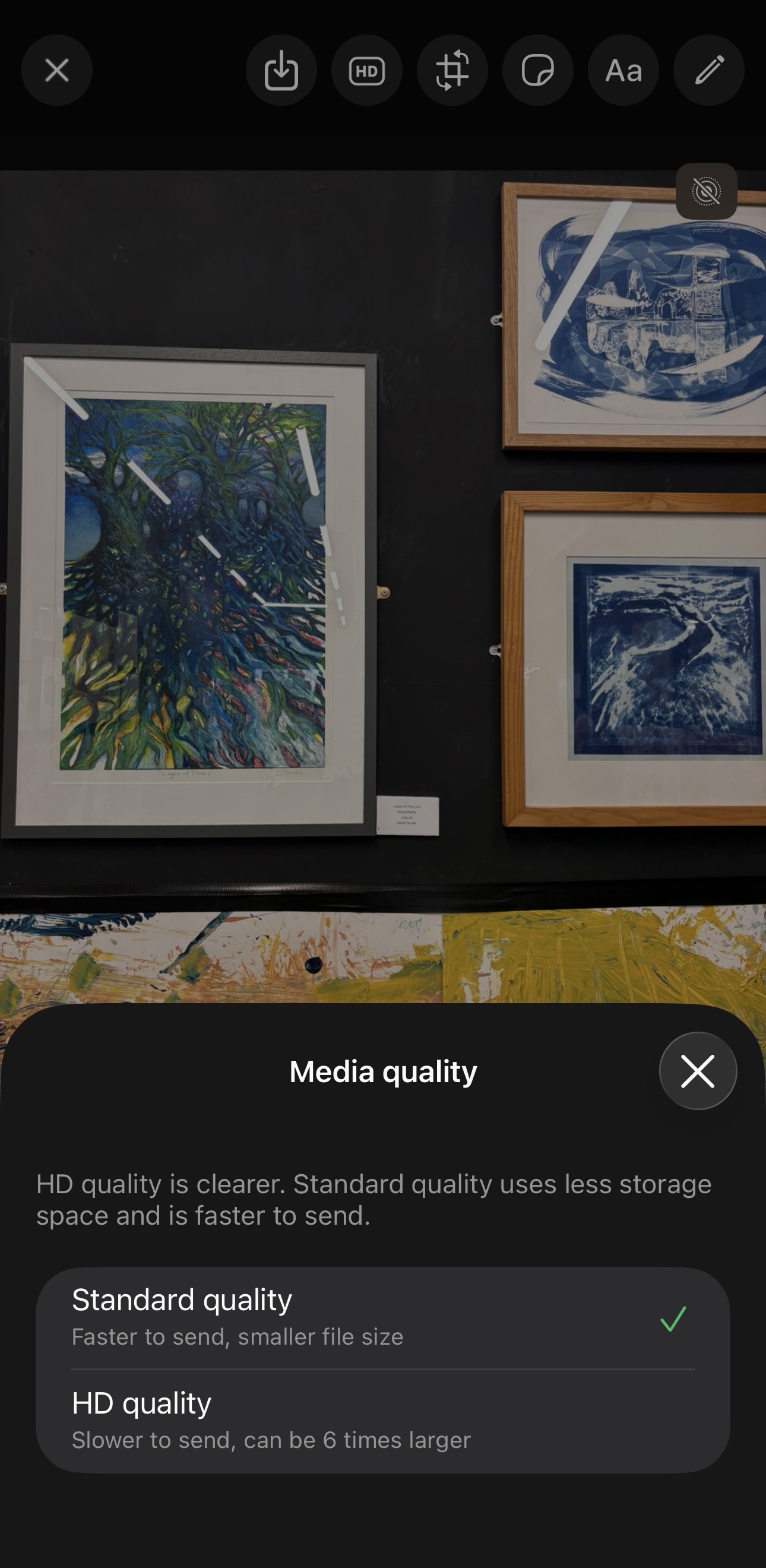
This is how you send HD images
If you just want your pictures to look sharper, WhatsApp has a built-in HD option.
Here’s what to do:
- Open your WhatsApp chat.
- Tap the + button on iPhone or the paperclip (attachment) icon on Android.
- Select your photo as you normally would.
- Tap the HD button at the top of the screen.
- Press Send.
You can also make HD the default, so you don’t have to tap the button every time. Simply go to Settings > Storage and data > Media upload quality and then select HD quality.
But HD isn’t the same as the original photo. There’s one thing loads of people don’t realise. Even if you send a picture in HD, WhatsApp still compresses it. So while it looks much better than the standard version, it isn’t exactly the same quality as the original photo saved on your phone.
If keeping every bit of detail matters, there’s a better option.
Send the picture as a document instead
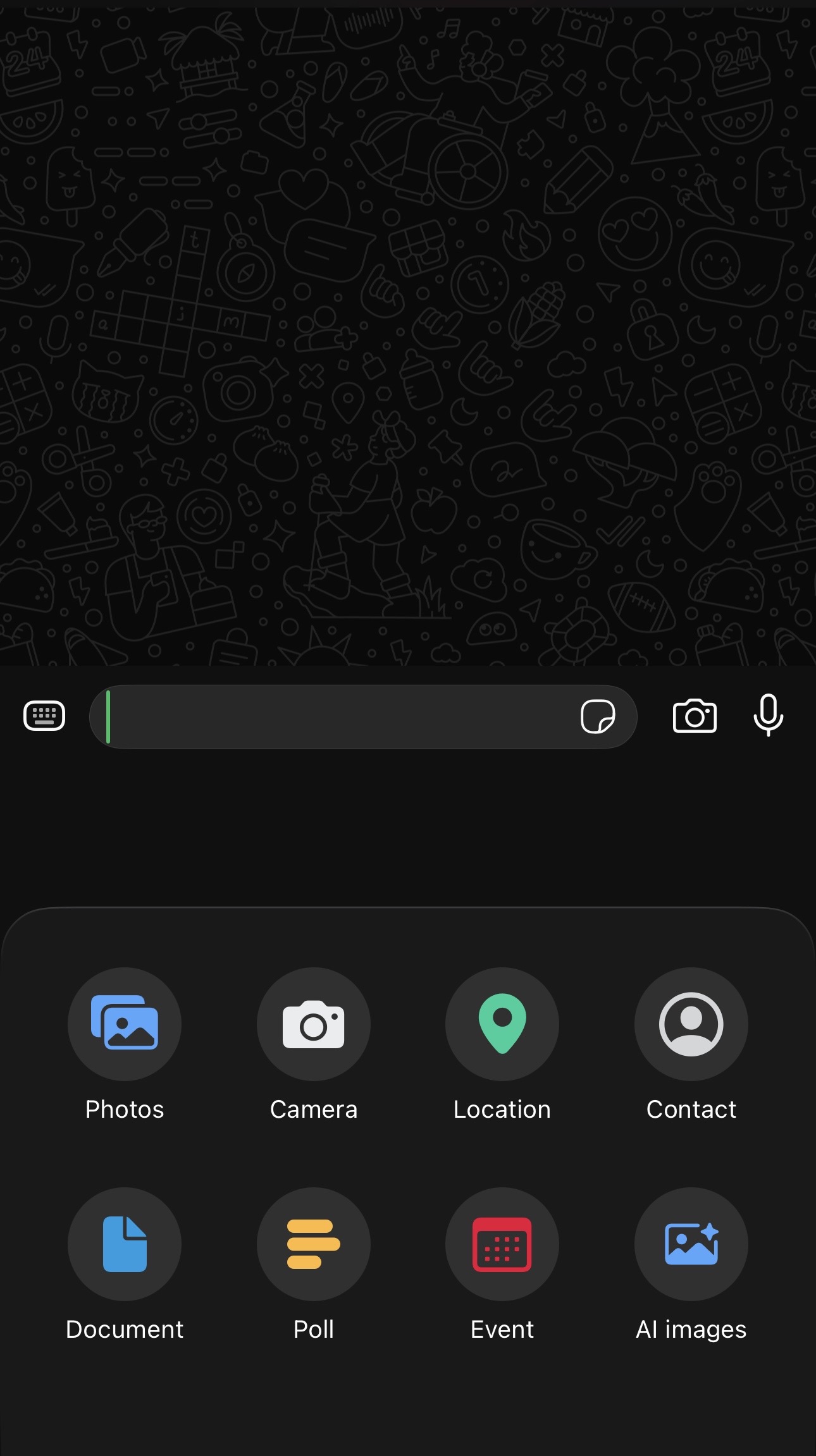
This is how you send a document
Basically, sending a photo as a document stops WhatsApp from compressing it. On iPhone, open your chat, tap the + button, choose Document, then tap Choose Photo or Video. Select your image or video and send it.
On Android, open the chat, tap the paperclip icon, choose Document, then select your photo from your gallery or files before sending it.
That’s literally it.
Because WhatsApp treats the image as a document instead of a photo, it sends the original file without reducing the quality. The person receiving it gets the picture in its full resolution, exactly as it was saved on your phone.
And you’re welcome!
For more like this – like The Tab on Facebook.
Latest

An investigation into how boujie Michaella’s life actually is beyond Love Is Blind

Well, she did announce she was high maintenance

Love Is Blind’s Wilson and Wilnie explain the circumstances of Malaine’s ‘difficult’ exit
‘We could have had that conversation’
Newcastle University student left in tears after robbery

The student was described as ‘crying and emotional’ on the ground after the attack
The worst day ever (UOB student edition)

Welcome to the one day that every UoB student prays not to encounter, but will inevitably experience in one way or another

If you apply Hannah Fry’s Celebrity Traitors formula to the show, it’s so clear she would’ve won

Maya and James saved their skins by recruiting her
The 20 cheapest UK universities for a night out in 2026, revealed
Liverpool is one of the best places for skint students to go out

Celebrity Traitors star who had an early exit launches members’ club, and one tier is £999
For £299 a year you can get a meet-and-greet… via video
Pitbull themed charity 5k returns to Manchester for a second time

Bald caps, sunglasses and Mr Worldwide’s greatest hits will once again take over the streets

Sarah reveals parts of political conversations she had with John that got cut from Love Is Blind

‘I wish everyone could have seen the full conversation’
Zoella and Alfie have been spotted in New York, after months away from social media

They’ve been out of the spotlight
Bus confused? A Durham student’s guide to the bus
Your guide to the cheapest and easiest way to get around Durham

Stepdad accused of murdering Lancashire student declines to give evidence during trial

Nathan Owens, 34, allegedly attacked and killed his step-daughter at her accommodation in Preston

New to Exeter? Here are eight things to add to your uni bucket list

From EGB and Varsity to beach days in Exmouth, here are things you must tick off before you leave
Guarding the Queen to freestyle rapper: The odd jobs The Celebrity Traitors cast had before fame
Sharon Rooney used to teach kids about water safety
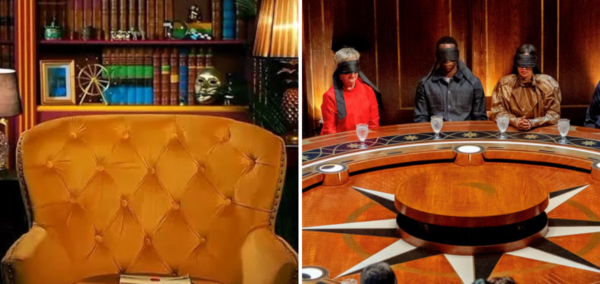
The Traitors has three identical diary rooms so several players can film at the same time
There are also six cloaks
Love Island’s Lucinda shares honest update on what her relationship with Sean is really like
She admitted they argued a lot at the start of their relationship
I knew about Sebastian, but I didn’t realise that four of The Celebrity Traitors cast are queer
It’s basically a big gay party and I’m here for it
After everything Ross Kemp has survived, it’s Celebrity Traitors that finally broke him
He’s done all this but Bella Ramsey broke him with simply a hat
As they prepare to be parents, here’s a look at the net worths of Love Island’s Tyrique and Samie
One is considerably richer than the other