

Um, this sneaky iPhone button lets you stop people from being able to snoop on your phone
This is such a hack?!
People are only just finding out there’s a secret iPhone button that can allow you to stop people from being able to snoop around on your phone. I’m not going to ask any questions about why you might need this feature, that’s none of my business, but I am going to tell you that yes, it does exist.
“iPhone hack: When you give someone your phone and you want them to stay just in that app, and to make sure they can’t go through your phone,” one person said, sharing the feature. Another added: “Why didn’t anyone tell me about this feature before? Ever since I discovered this feature on my iPhone, I’ve been growing more and more attached to it—it’s impossible to put it down now.”
Ok, now I need to know more.
iPhone hack 💀: when you give someone your phone and you want them to stay just in that app, and to make sure they can’t go through your phone. pic.twitter.com/wukaFScgEd
— kgadi♠️ (@Kgadi_yaMoloto) June 1, 2026
What is the sneaky iPhone button and how do you use it?
Look, the main purpose of the button is not to stop unwanted snooping. It was actually designed as a sort of child lock, so parents can give their children their phones, and not worry about where they might end up. But, it now has a use for everyone, not just parents. It’s called the Guided Access feature.
With it, you can limit access to one single app. So, when you hand your phone over to someone to look at something, they can’t then go looking elsewhere.
You need to set it up before you can use it. Go to settings, tap accessibility, then tap Guided Access and turn it on. You can then set up the way you want to turn off a “guided access session” i.e. get your phone back to normal. This is with something such as a passcode, or Face ID. When you enter these, your phone becomes free once again.
Then, if you want to start a Guided Access session, you just ask Siri to do so, or use the button that should now be on your control centre. For some people it appears as a padlock in a circle, for others it’s a padlock in a square. It looks quite similar to the portrait orientation lock button.
There are loads of other ways you can customise this feature, and add other restrictions, but that’s the real basics!
For more, like The Tab on Facebook.
Latest

University of Bristol plans new security doors at Beacon House

New security gates are to be put up in Beacon House study centre
People are torn about American Horror Story replacing Papa Legba’s actor, despite the tragedy

The new actor has spoken out

Professor Hannah Fry’s pink jumpers from The Celebrity Traitors are almost affordable

Two of her knitwear pieces are from the same shop

Fancy celebrating Oktoberfest? Here are the five best spots in Manchester

The good news is you don’t need to travel all the way to Munich get stuck in with the festivities

Meet Alexandra, founder of LEX. – Newcastle’s answer to Mayfair after dark

Girls just want to have fun (club edition)

New report from University of York exposes hidden poverty in city

The University of York’s Cost of Living Research Group uncovers modern-day deprivation and inequality in the city
I interviewed Christa Pike 20 years ago, and meeting her will stick with me forever

‘She knows she wasted her life’

Far-right commentator driven off campus after clash with protesters

Students protested the presence of Montgomery Toms outside a University of Bristol study centre

We were barely born when Madeleine McCann went missing, so why can’t Gen-Z stop thinking about her?
‘Someone the same age as you never got to enjoy life as you have’

‘Am I gonna cry?’: Myha’la just found out who the Traitors are after being brutally banished
In the clip, Myha’la goes through so many emotions
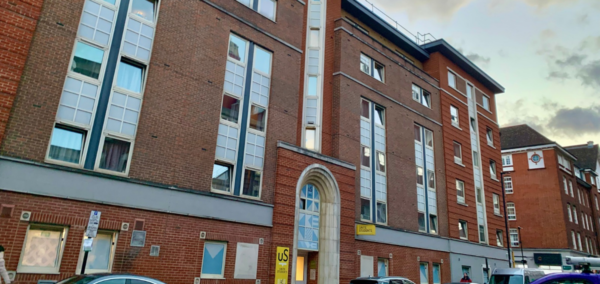
Unite cuts the rent of some student accommodation, including in Nottingham and Sheffield
Unite struggled to fill rooms in some halls

Non-profit Enough distributes self-swap DNA kits at unis, but some students are concerned
Police warned ‘these kits can create false expectations’

Banished Celebrity Traitor Richard E Grant reacts to James and Maya’s roundtable betrayal
The Traitors did not stick together


Looking for a cheap night out in Manchester – here are the best spots the city has to offer

Happy hour spots for when your bank balance is low but a night out is much needed
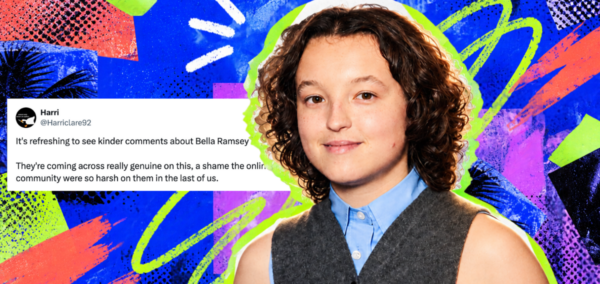
Bella Ramsey on Celebrity Traitors made me nervous as a queer person, but then came Ross Kemp
They’re already shaping up to be a weapon at the roundtable


Lancaster city centre record store and coffee shop announces its closure
The business owners are ‘passionate about the local music scene’

The Celebrity Traitors rich list: The most loaded celebs to appear on the show, across both series
Some of them probs live in castles already

Yes Celebrity Traitor Richard E Grant is kooky, but the range of his roles already proved that
Turns out I’ve been watching Richard for years and didn’t realise it