
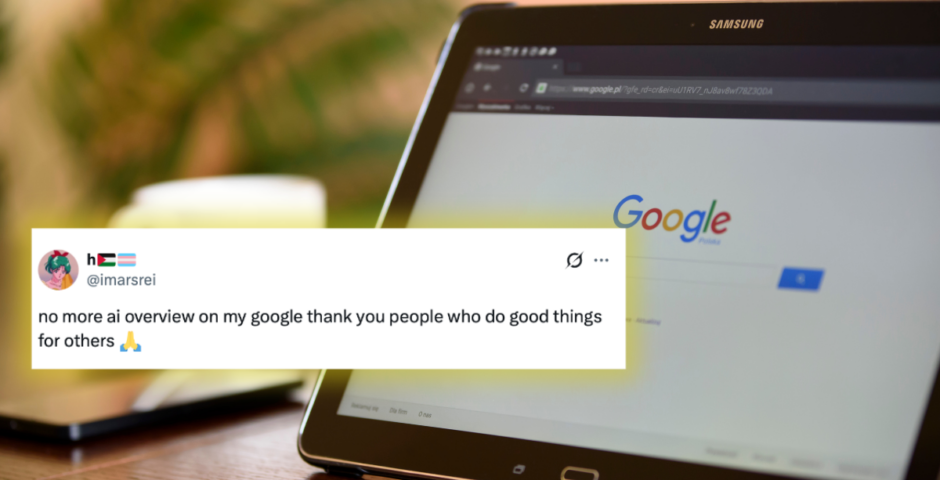
Here’s how you can remove Google’s automatic AI overview, for normal search results
It’s not that hard

Google might insist it’s living in its Gemini era, but for many people, that era is deeply annoying. Over the past year, Google has flooded its search results with AI-generated summaries known as AI Overviews. These are designed to answer your question directly on the results page, meaning you don’t have to click through links anymore. Convenient in theory, except they’re often wrong, or just not what you’re looking for.

The more specific your query, the worse it gets. From confidently incorrect health advice to completely fabricated facts, AI Overviews have caused enough chaos that Google has already had to remove false information, tweak its algorithms, and add visible sources. Unfortunately, there’s still no official way to turn them off completely.
That said, there are a few ways to make them appear far less often.
Use Google’s hidden “Web” filter
Around the same time Google rolled out AI Overviews more widely, it also added a new Web filter to Search. This option strips results back to traditional blue links, and crucially, removes the AI Overview panel entirely.
If you see AI snippets at the top of your search, click Web underneath the search bar. If it’s not visible, hit More and select it from the menu.
Once Web is selected, the AI Overview disappears.
This isn’t a perfect return to old Google, though. The Web filter is strictly for links, meaning YouTube previews, image snippets, and other embedded results won’t show up. It’s text links only, all the way down.
The most reliable fix: Change Chrome’s search settings
Browser extensions can help, but they’re fragile. Google changes its backend constantly, and plug-ins often break overnight. The simplest and most reliable solution is changing your default search setup in Chrome.



Here’s how to do it:
-
Open Chrome and type chrome://settings/searchEngines into the address bar.
-
Go to Search Engine > Manage Search Engines and Site Search.
-
Click Add next to Site Search.
-
Fill in the form like this:
-
Name: AI Free Web
-
Shortcut: @web
-
URL: {google:baseURL}search?q=%s&udm=14
-
-
Save it, then click the three dots next to AI Free Web and select Make default.
This forces Google to load web-only results by default, meaning AI Overviews won’t appear at the top of your searches anymore.
Mobile users aren’t so lucky
Unfortunately, blocking AI Overviews on mobile is much harder. There’s no support for browser plug-ins, and while you can choose a custom search engine, Google doesn’t let you manually add the filter string needed to disable AI summaries.
For now, desktop users have options. Mobile users are largely stuck with whatever Google decides is best for them, correct or not.
For more like this, like The Tab on Facebook.
Featured image credit: Canva, X



Latest

How to make the most of who you meet at uni

From friends to flatmates to course friends, you’re destined to meet some good people

Calling all Cardiff Uni social secs – here are the social themes you must include this year

Another Wednesday, another fancy-dress theme to think of

The Tab’s ultimate guide to Halloweek in Sheffield

We’ve found all of the spookiest events happening across Sheffield, so get ready for a week of terror and chaos

It’s Breast Cancer Awareness Month: Here’s a KCL student’s guide to checking their chest

Because everyone should learn how to check their chest

Lancaster MP backs plans to fine passengers for blasting music on public transport

Cat Smith plans to fine bus and train passengers who play loud music

Can you finish this article without checking your phone?

It’s not just you, here’s what endless scrolling is doing to your concentration and your uni work

Are sports socities at UofG too exclusive?

Making a team might require hard work and dedication, but fitting into the social circle can feel like a whole other competition

Film documenting the killing of civilians in Gaza now showing at Tyneside Cinema

NAZA depicts interviews with 24 Israeli soldiers and intelligence officers

New to Birmingham? Here are the best study spots in the city

Whether you’re dodging your flatmates or convinced a change of scenery will fix your productivity, here are some spots where you’ll be able to buckle down (hopefully)

Things to do for Halloween if you didn’t get Salvos Tickets

Don’t fear, there’s more to Halloween than just the club

Six iconic halloween costumes for brunette Bristol girls

With summer now a distant memory, spooky season is upon us ladies

From pumpkins to parties: here’s a round-up of Halloween events happening in Lancaster

A guide to all of Lancaster’s best Halloween events

Love Is Blind’s Cam didn’t ‘do great’ when Aneha critiqued his looks at their engagement

He thought, ‘Wow, does she hate me?’

Lots of the Love Is Blind S11 cast aren’t from Boston – here’s how far apart the couples live
Blake and Erika live in different states

Miranda Hart’s painful reality with illness as Celebrity Traitors marks her iconic return to TV

For years, she was told it was just stress

Interview: Alexander Newman, outgoing Editor-in-Chief

From an unpublished study of Italian seduction to the top of the masthead in record time: the outgoing Editor-in-Chief on manifestation, media barons and why first years should be kept well away from microphones

The flatmate red flags Leeds students need to watch out for (and how to avoid them)

Don’t trust your flatmate? Here’s how to fix that

Newcastle food hot spots worth spending your maintenance loan on

If you’re going to splurge, splurge at these spots x

Top tips for securing the perfect student house in Birmingham

It’s like Escape to the Country, except we’re in Selly and there’s not a blade of grass in sight x

‘Everyone needs to fart’: Bristol bus driver loses tribunal claim after ‘significant flatulence’ incident

A Bristol bus driver has lost her tribunal claim after being dismissed on probation, with the judge ruling there was no discrimination or harassment