
This viral tool lets you customise your Apple Pay cards, and here’s how to do it
You can personalise the entire design
Everyone’s freaking out about a new viral tool that lets you customise your Apple Pay cards on your iPhone to anything you like.
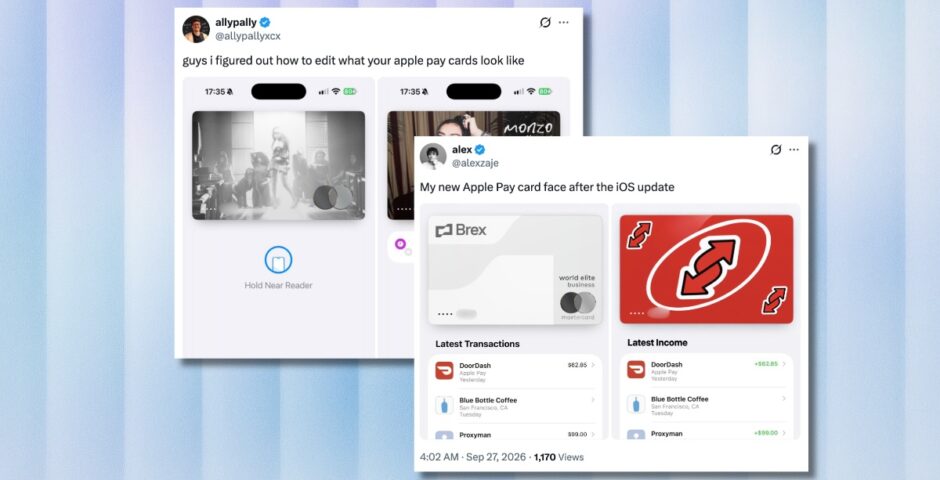
It’s called AirCard, and it literally allows you to add any photo to your cards in the Apple Wallet. So, rather than just showing the normal American Express or NatWest logo when you go pay, it looks super vibey instead. People are changing their payment cards to all kinds of things, from pictures of Sabrina Carpenter to funny memes.
The tool is called AirCard, and it’s gone viral this week, but before you go any further, note that this *IS NOT SUPPORTED BY APPLE* and its safety hasn’t been confirmed.
It’s a third-party software created by a mystery internet user and uploaded to GitHub, a platform used by developers to share software projects. Lots of people appear to be successfully customising their cards and aren’t reporting any issues, but I’d be very wary if I were you. It’s not exactly screaming safe.
“AirCard is a macOS tool that connects to an iPhone over USB to customise Apple Wallet / Apple Pay card artwork. It also supports lock screen passcode themes and theme creation,” the website says. “Artwork changes are visual: an image does not create a bank card or change its payment permissions.”
guys i figured out how to edit what your apple pay cards look like pic.twitter.com/Ix3pPu3ooE
— allypally (@allypallyxcx) October 1, 2026


How to customise your Apple Pay cards on an iPhone
If you do want to go ahead and give it a go, which you do so at your own risk, you need to download the AirCard software here. Then, connect the iPhone to your Mac with a USB data cable, choose “Trust This Computer” and enter the device passcode.
In the AirCard software, open your Apple Wallet and click “Scan Cards”. Then, double-click the side button on your iPhone to open Apple Pay and authenticate with Face ID. After that, tap the card you want to customise and wait for the card to appear in AirCard on the Mac.
Upload a PNG photo and drag the image directly onto the card. Then, check the preview to make sure it looks right. Finally, click “Flash Skins” and wait for it to complete. Then, close the Wallet and reopen it. If the image hasn’t updated, restart your iPhone.
For more like this, like The Tab on Facebook. Featured image credit: Twitter/Apple

Latest



23 to 70: The ages of the Celebrity Traitors 2026 cast, from youngest to oldest

There’s a huge age range this year

James Blunt was a British Army captain before becoming a singer and joining Celebrity Traitors

He mentioned it on the show

Monster director finally admits why they forced Aileen Wuornos in a show about Lizzie Borden

Despite the name, Lizzie Borden is not the focus of the story
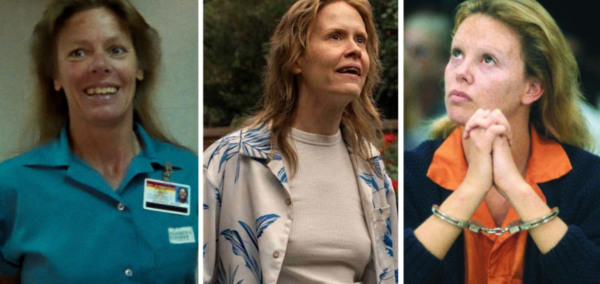
Shows and films you can watch about Aileen Wuornos, where she isn’t thrown into another story

Others tell her entire case, unlike Monster on Netflix

This viral tool lets you customise your Apple Pay cards, and here’s how to do it
You can personalise the entire design

James Acaster could be the Celebrity Traitors’ recruit, as filming reportedly paused for him
It’s not much of a cliffhanger

The ridiculous fortunes of The Celebrity Traitors: Their net worths, from £500K to £50 million
One of them could legit buy the castle three times over

The Celebrity Traitors rules explained, as Richard E Grant immediately let slip he’s a Traitor
There’s actually a slightly confusing loophole

Celebrity Traitors’ Richard E Grant lost his wife to cancer after epic 38-year love story
She passed away in 2021

AHS 13’s Leslie Grossman explains jarring way all the seasons connect, and I’m even more confused
Sarah Paulson alone is playing five characters from different seasons

Gypsy Rose describes being ‘in disbelief’ as details of partner Ken Urker’s death are shared
The investigation is ongoing

Celebrity Traitors producer shares if Richard E Grant really slipped up with Traitor reveal
I was on the edge of my seat

Mum of Christa Pike’s victim wants killer to face same fate as her daughter in raw message
‘If I could have gotten in that room’

The latest we know about Christa Pike’s condition in hospital, one day after failed lethal injection
She has been left with ‘blistering and burning’ on her arm

Gypsy Rose Blanchard releases statement as partner Ken Urker is found dead aged 34
They share a child together

There are co-star dating rumours about A Different World’s fittest star, Cornell Young IV
There’s gonna be about a million disappointed people

Hannah Fry revealed her plan to stay ‘mischievous’ during Celebrity Traitors season two
‘I’m toxically competitive’

Where Miranda Hart has been as she returns to TV on Traitors, from health issues to new husband
It’s such fun to have her back on our screens

Where the brainy Celebrity Traitors cast went to university, plus what they studied

Of course loads went to Russell Group universities